Printer ink and toner supplied across Spain.
No fuss, no bother and cheaper than the shops!

+34 630 156 447

Epson

  • What To Do If Your Epson Printers Print Quality Isn't Great...

    Posted in the Epson, category Help category

    As you use your printer, drops of its ink are deposited on the printer print heads, this is a normal part of using a printer, however sometimes - usually, but not always, if the printer has not been used in a while - these drops of ink will dry and cause the printers print heads to block up.  Imagine the holes in a shower head becoming blocked, each blockage causes the shower head to become less and less affective in passing water; well with your printers print heads, this blockage causes the ink not to get to the page and therefore your print quality is affected.

    Sometimes this can be as bad as to cause the total absence of an individual colour on a page - for example if you have a blocked black ink cartridge and you print a full page of black text, the printer will appear to work but only a blank page will be printed.

    Spanishink.com always stock the best quality compatible ink cartridges to help reduce the number of blockages, its also true that printers tend to block less when used only with original inks - its one of the down sides to using compatible ink cartridges; however most people find that the cost saving in compatible ink cartridges far outways this disadvantage.

    In order to perform a printer head clean on your Epson printer you should follow one of our step by step guides.

    Depending on the operating system, you should use either the Windows XP guide for Epson head cleaning, or for Windows Vista guide for Epson head cleaning or Windows 7 guide for Epson head cleaning.

  • How to Perform an Epson Cartridge Head Clean Using Windows 7

    Posted in the Epson, category Help category

    From time to time your printers print heads will require cleaning, this is an automatic process that attempts to clean off any dried on ink particles that are attached to the printer print heads, performing a head clean will improve the quality of your printing. There are a couple of ways in which you can perform a head clean, this step by step guide covers the most easily followed method by using the Windows printer properties within Windows 7.

    IMPORTANT NOTE: In Spain, because of the high temperatures we expierience in the summer it's not unusual to find that it is necessary to perform a printer head clean after the printer has not been used for a couple of weeks.

    1. Click the Windows start button (located in the bottom left hand corner of the screen, or press the Windows button on the keyboard)

    2. Click Control Panel

    3. Click on View Devices and Printers in the Hardware and Sound section

    4. Right hand click on the printer that has the problem.

    6. Click on Printing Preferences and a screen similar to the following will be shown.

    9. Click on the Maintenance tab and the following screen is displayed.

    10. Click the "Head Cleaning" button and follow the instructions to perform a head clean.

    11. After performing a head clean its advisable to print a nozzle check - this process will print a test page that shows whether any of the nozzels are fully or partially blocked -further head cleans may be advised if the nozzle check is unsatisfactory.


  • How to Perform an Epson Cartridge Head Clean Using Windows Vista

    Posted in the Epson, category Help category

    From time to time your printers print heads will require cleaning, this is an automatic process that attempts to clean off any dried on ink particles that are attached to the printer print heads, performing a head clean will improve the quality of your printing. There are a couple of ways in which you can perform a head clean, this step by step guide covers the most easily followed method by using the Windows printer properties within Windows Vista.

    IMPORTANT NOTE: In Spain, because of the high temperatures we expierience in the summer it's not unusual to find that it is necessary to perform a printer head clean after the printer has not been used for a couple of weeks.

    1. Click the Windows start button (located in the bottom left hand corner of the screen, or press the Windows button on the keyboard)

    2. Click Control Panel

    3. Ensure that the Control Panel is in "Control Panel Home View" - if it is not then click on the Control Panel Home View in the image below.

    4. Click on Printers in the Hardware and Sound section

    5. Right hand click on the printer that has the problem.

    6. Click on Printing Preferences and a screen similar to the following will be shown.

    9. Click on the Maintenance tab and the following screen is displayed.

    10. Click the "Head Cleaning" button and follow the instructions to perform a head clean.

    11. After performing a head clean its advisable to print a nozzle check - this process will print a test page that shows whether any of the nozzels are fully or partially blocked -further head cleans may be advised if the nozzle check is unsatisfactory.


  • How to Perform an Epson Cartridge Head Clean Using Windows XP

    Posted in the Epson, category Help category

    From time to time your printers print heads will require cleaning, this is an automatic process that attempts to clean off any dried on ink particles that are attached to the printer print heads, performing a head clean will improve the quality of your printing. There are a couple of ways in which you can perform a head clean, this step by step guide covers the most easily followed method by using the Windows printer properties within Windows XP.

    IMPORTANT NOTE: In Spain, because of the high temperatures we expierience in the summer it's not unusual to find that it is necessary to perform a printer head clean after the printer has not been used for a couple of weeks.

    1. Click the Windows start button (located in the bottom left hand corner of the screen, or press the Windows button on the keyboard)

    2. Click Settings

    3. Click Control Panel

    4. Ensure that the Control Panel is in "category view" - if it is not then click on the Switch To Category View in the image below.

    5. Double Click on Printers and Other Hardware

    6. Double Click on Printers and Faxes

    7. Right hand click on the printer that has the problem.

    8. Click on Properties and a screen similar to the following will be shown.

    9. Click on the Maintenance tab and the following screen is displayed.

    10. Click the "Head Cleaning" button and follow the instructions to perform a head clean.

    11. After performing a head clean its advisable to print a nozzle check - this process will print a test page that shows whether any of the nozzels are fully or partially blocked -further head cleans may be advised if the nozzle check is unsatisfactory.


  • How To Identify Which Ink Cartridge/s Are Not Compatible With Your Epson Printer - Windows 7

    Posted in the Epson, category Help category

    In order to check which ink cartridges are not compatible with your Epson printer, you must view the printer properties within Windows Vista, this step by step guide will help you achieve this.

    IMPORTANT NOTE: many compatible ink cartridges are reported as "incompatible" when they are actually empty, so if you are seeing this message after you have been using your cartridge for a reasonable amount of time then its probably best to just replace it with a new ink cartridge before doing any further troubleshooting to see if that resolves the issue.

    1. Click the Windows start button (located in the bottom left hand corner of the screen, or press the Windows button on the keyboard)

    2. Click Control Panel

    3. Click on View Devices and Printers in the Hardware and Sound section

    4. Right hand click on the printer that has the problem.

    6. Click on Printing Preferences and a screen similar to the following will be shown.

    9. Make a note of the offending ink cartridge (for future reference)

    10. Perform an ink cartridge replacement but actually remove the offending cartridge and re-insert it as this problem can occur if the cartridge was either inserted too quickly or incorrectly.

    11. If the problem persists, then turn off the printer, leave it for 30 seconds and then turn it on again.

    12. Finally this problem can commonly occur when compatible and original ink cartridges are mixed, remove ink cartridges and replace so that you have a full set of just one type of ink cartridge (all original or all compatible).


  • How To Identify Which Ink Cartridge/s Are Not Compatible With Your Epson Printer - Windows Vista

    Posted in the Epson, category Help category

    In order to check which ink cartridges are not compatible with your Epson printer, you must view the printer properties within Windows Vista, this step by step guide will help you achieve this.

    IMPORTANT NOTE: many compatible ink cartridges are reported as "incompatible" when they are actually empty, so if you are seeing this message after you have been using your cartridge for a reasonable amount of time then its probably best to just replace it with a new ink cartridge before doing any further troubleshooting to see if that resolves the issue.

    1. Click the Windows start button (located in the bottom left hand corner of the screen, or press the Windows button on the keyboard)

    2. Click Control Panel

    3. Ensure that the Control Panel is in "Control Panel Home View" - if it is not then click on the Control Panel Home View in the image below.

    4. Click on Printers in the Hardware and Sound section

    5. Right hand click on the printer that has the problem.

    6. Click on Printing Preferences and a screen similar to the following will be shown.

    9. Make a note of the offending ink cartridge (for future reference)

    10. Perform an ink cartridge replacement but actually remove the offending cartridge and re-insert it as this problem can occur if the cartridge was either inserted too quickly or incorrectly.

    11. If the problem persists, then turn off the printer, leave it for 30 seconds and then turn it on again.

    12. Finally this problem can commonly occur when compatible and original ink cartridges are mixed, remove ink cartridges and replace so that you have a full set of just one type of ink cartridge (all original or all compatible).


  • What to do when your Epson printer reports a cartridge is not compatible...

    Posted in the Epson, category Help category

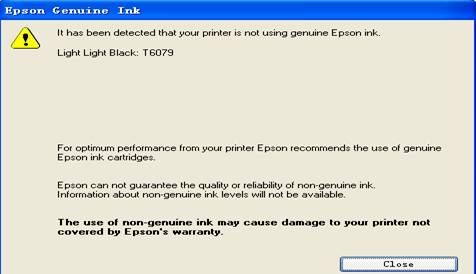
    Firstly you should be aware that this can happen to anyone, regardless of whether you are using compatible or original ink with your printer. Epson ink cartridges (both original and compatible) have a chip attached to them that is either compatible or not compatible with your particular printer. There are currently at least 7 "generations" of chip, so for example if you have a newer printer that will accept only generation 6 and 7 chips then generation 1, 2, 3, 4 and 5 cartridges will simply not work in your printer.

    Spanishink.com always stock the latest generation ink cartridges, giving you the best chance of sucess; if however you do experience a problem then there are a number of steps that you can follow to determine whether or not you can use the ink cartridges bought from us.

    Step 1 - Check That You Have Ordered The Correct Cartridge

    Everyone makes mistakes! The first thing to check is that you have actually ordered the correct ink cartridge for your printer, some Epson cartridges will physically fit in a number of printers so dont assume that just because your cartridge fits that its the correct one. The best place to look to confirm that you have the correct ink cartridge would be the printer manufacturers website, www.epson.co.uk and enter your printer model number in the search bar in the top right of the screen, once you find the correct printer, click on the link to "ink and accessories" to find the correct ink codes for your printer - if you have inadvertantly ordered the wrong ink cartridge for your printer then please contact our customer service department who will help you to return any unopened cartridges for replacement.

    Step 2 - Check The Printer Properties To Confirm Which Ink Cartridge Is Not Compatible

    Its more than possible that out of all the ink cartridges that you have inserted in your printer only one of them is being not recognised as compatible, its important to know which ink cartridge is failing the compatibility test of your printer as its only this ink cartridge that will require replacement.

    In order to identify which ink cartridge/s are not compatible please follow the steps in our online guide for Windows XP, Windows Vista or Windows 7 or contact Customer Service Department for an email copy of the guide.

    If you discover that ink cartridges purchased through spanishink.com are not compatible with your printer then please contact our Customer Service Department detailing the steps that you have taken and they will guide you through our returns process.

  • How To Identify Which Ink Cartridge/s Are Not Compatible With Your Epson Printer - Windows XP

    Posted in the Epson, category Help category

    In order to check which ink cartridges are not compatible with your Epson printer, you must view the printer properties within Windows XP, this step by step guide will help you achieve this.

    IMPORTANT NOTE: many compatible ink cartridges are reported as "incompatible" when they are actually empty, so if you are seeing this message after you have been using your cartridge for a reasonable amount of time then its probably best to just replace it with a new ink cartridge before doing any further troubleshooting to see if that resolves the issue.

    1. Click the Windows  start button (located in the bottom left hand corner of the screen, or press the Windows button on the keyboard)

    2. Click Settings

    3. Click Control Panel

    4. Ensure that the Control Panel is in "category view" - if it is not then click on the Switch To Category View in the image below.

    5. Double Click on Printers and Other Hardware

    6. Double Click on Printers and Faxes

    7. Right hand click on the printer that has the problem.

    8. Click on Properties and a screen similar to the following will be shown.

    9. Make a note of the offending ink cartridge (for future reference)

    10. Perform an ink cartridge replacement but actually remove the offending cartridge and re-insert it as this problem can occur if the cartridge was either inserted too quickly or incorrectly.

    11. If the problem persists, then turn off the printer, leave it for 30 seconds and then turn it on again.

    12. Finally this problem can commonly occur when compatible and original ink cartridges are mixed, remove ink cartridges and replace so that you have a full set of just one type of ink cartridge (all original or all compatible).


  • T0711 - T0714 cartridges - which generation?

    Posted in the Epson category

    [product id="4107"]

    Epson regularly change their printers so that they will work only on a newer version chip.

    This means that a new printer may not work with an older version of the cartridge making it very important to choose the correct generation of chip for your printer.  Obviously Epson want you to buy original cartridges and try to make it as difficult as possible for people to use compatibles. Read more

  • Mixing T711 series compatible cartridges with the originals

    Posted in the Epson category

    Ink manufacturers are famous for making it difficult to use a combination of original and compatible cartridges in their printers at the same time.  We have been asked whether its possible to mix original and compatible inks in an Epson SX110/SX115 but previously we could only give the standard answer that to be safe you should have all originals or all compatibles in the printer at the same time.

    Today we tested the theory and tried changing an original black cartridge for our "Generation 7 chip" compatible cartridge and it worked perfectly - without any error messages etc.

    So now we have the answer to that question - use our ink and have no problems with compatibility!

    Let us know if there are any more questions that you have!

    Thanks

    SpanishInk.Com